Prerequisites
3D modeling software
The game engine supports source files in .blend and .fbx formats for in‑game assets. We recommend using Blender — a powerful open‑source 3D modeling tool — for the following reasons:
- All examples in this guide use Blender.
- To import models into Mod Editor (in
.fbxor.blendformat), you must have Blender version 4.5 or 5.0 installed on your computer.
However, you can use any 3D editor that exports to either .blend or .fbx.
- If you use Blender, it is recommended to use the
.blendformat. - If you use other software, the workability of the pipeline depends on the way the given 3D editor exports the data to the
.fbxformat.
Mod Editor data
The main tool for setting up truck mods is Mod Editor — most configuration steps take place there. All work performed with files in the editor takes place in the following folder:
%userprofile%\Documents\Saber\IntegrationStudio\mods_source\
If your Windows OS is installed on the C: drive, then the path is the following:
C:\Users\%username%\Documents\Saber\IntegrationStudio\mods_source\
3D asset source files
The source files of 3D assets are stored in the following folder:
%userprofile%\Documents\Saber\IntegrationStudio\mods_source\models\mods\*.tpl.asset
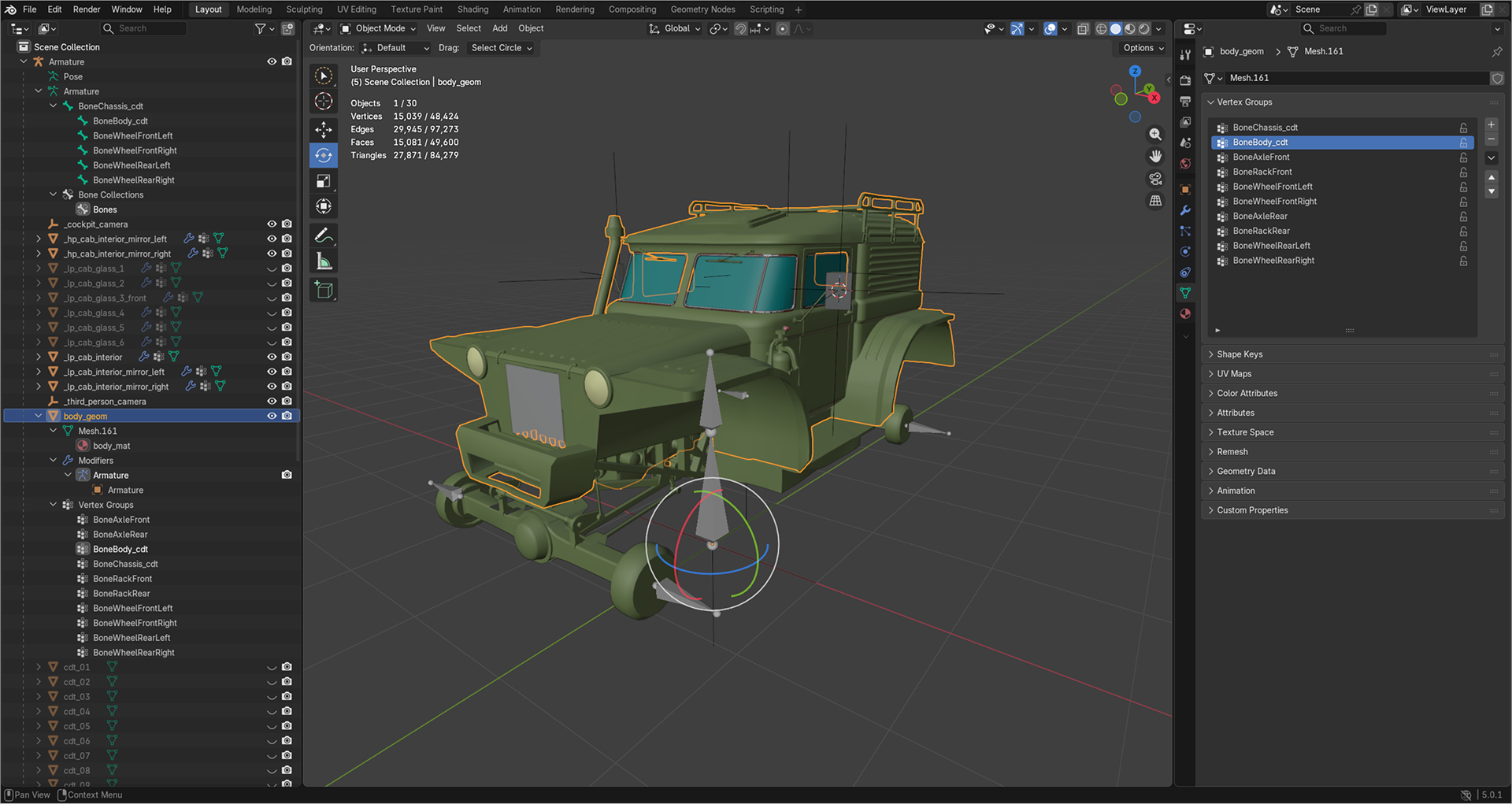
In this folder, you can find the source .blend-files, which are helpful if you want to study the details of complex trucks. For example, tuz_119lynx_mod.blend is available in:
%userprofile%\Documents\Saber\IntegrationStudio\mods_source\models\mods\tuz_119lynx_mod.tpl.asset
Truck configuration files
To understand how complex trucks work, study the .bro-files — they define the core functionality of vehicles and wheels. These files are stored in the following folders:
%userprofile%\Documents\Saber\IntegrationStudio\mods_source\bro\trucks
%userprofile%\Documents\Saber\IntegrationStudio\mods_source\bro\wheels