Build & Upload Mods
Create .mod-file
To create a .mod-file with custom scenes:
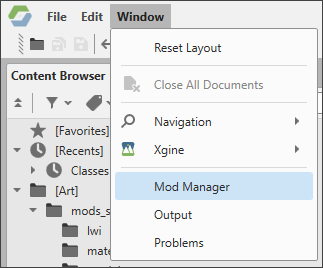
- Open the Mod Manager panel: Window > Mod Manager.
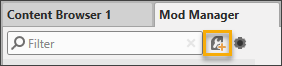
- In Mod Manager, click the Create mod button:
-
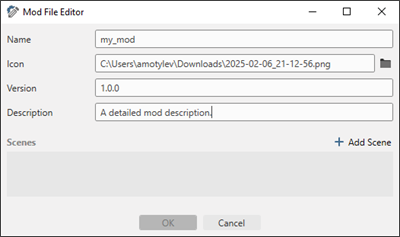
Enter the mod infromation in English in the Mod File Editor window:
-
Add a scene to the mod:
- Click Add Scene.
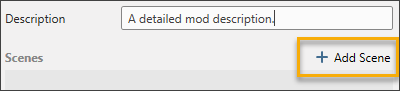
- In the Open Scene window, select a scene and click OK:
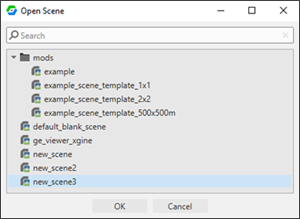
- Click Add Scene.
- Click OK in the Mod File Editor window to create a
.mod-file.
Your .mod-file will be displayed in Mod Manager:
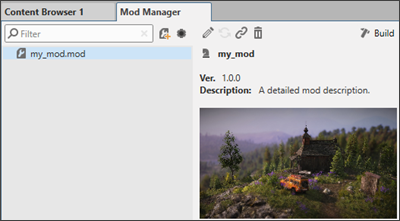
Build mod
A built mod is packed into a .pak-file containing all mod files. To build a mod:
- Select the
.mod-file in Mod Manager. - Click Build at the top-right corner of Mod Manager:
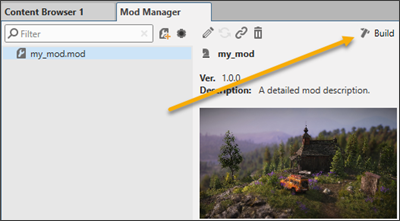
Wait for the build process to finish and click OK in the pop-up window:
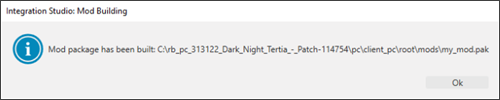
Upload mod to saber.games
Info
All information about your mod must be in English.
To upload a mod to saber.games:
- Log in to your Saber Account.
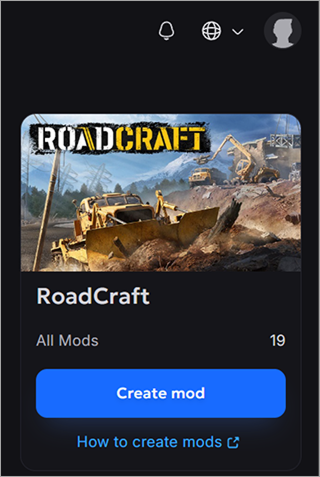
- Open the RoadCraft Mods page.
- In the upper-right corner of the window, click Create Mod.
-
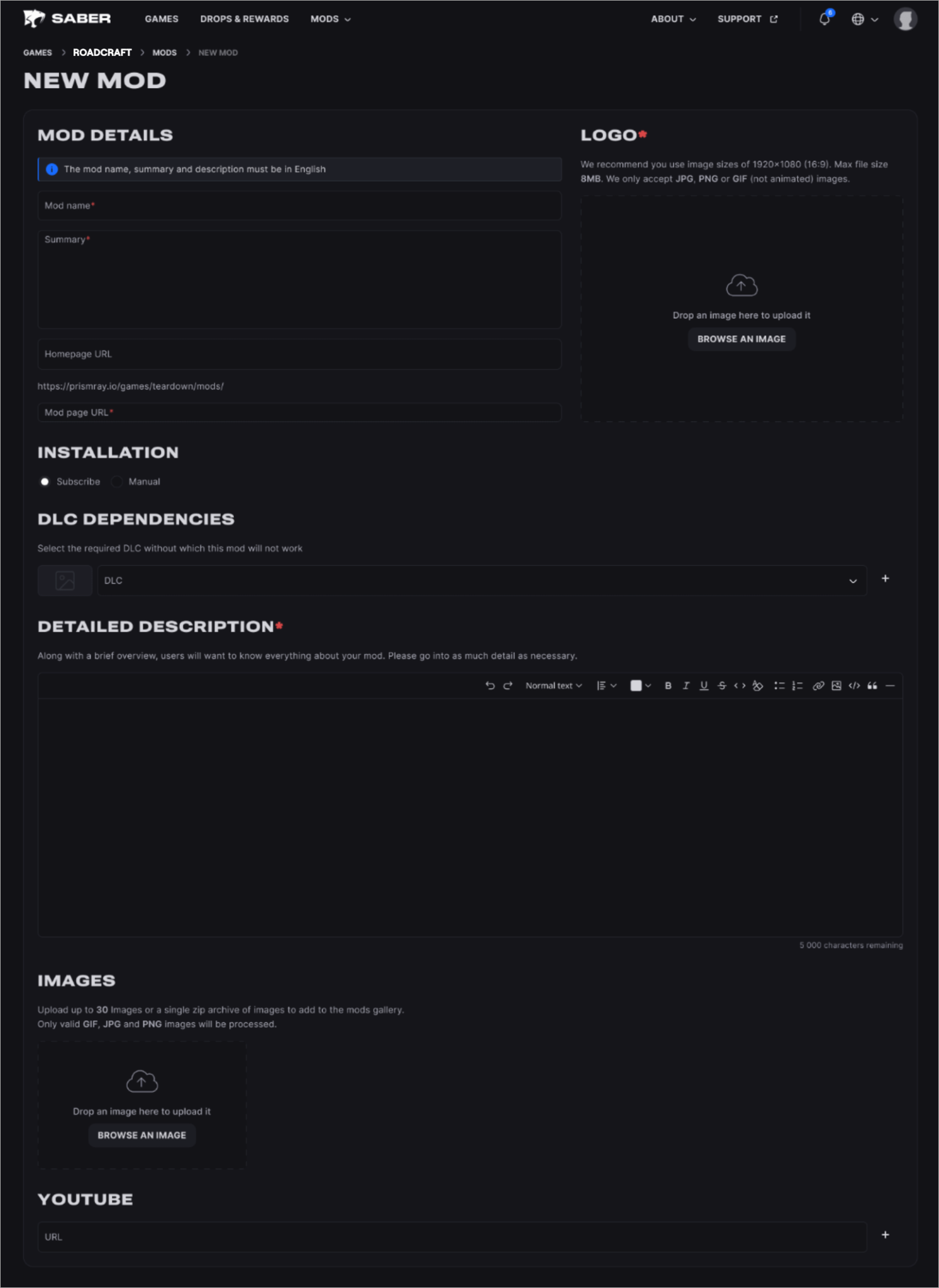
Enter your mod details in English (fields marked with * are mandatory) and click Next step at the bottom of the page.
Note
The Installation option:
- Subscribe — the mod is installed from Mod Browser.
- Manual — a player must install the mode manually.
If your mod is packaged as the
.zipfile and/or was not created using Mod Editor, select the Manual type. -
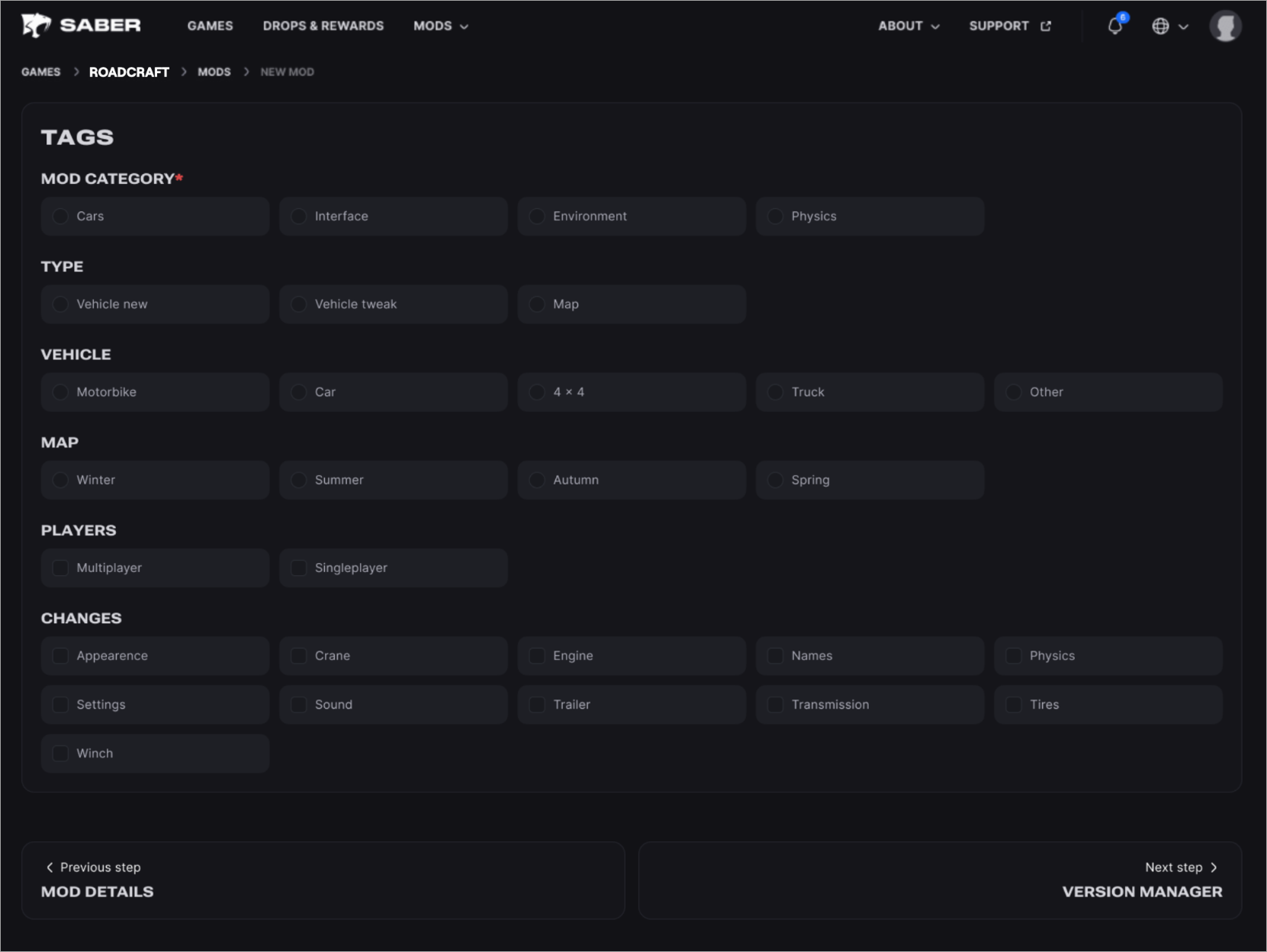
Select the Mod category and click Next step at the bottom of the page.
-
Upload the first version of your mod:
-
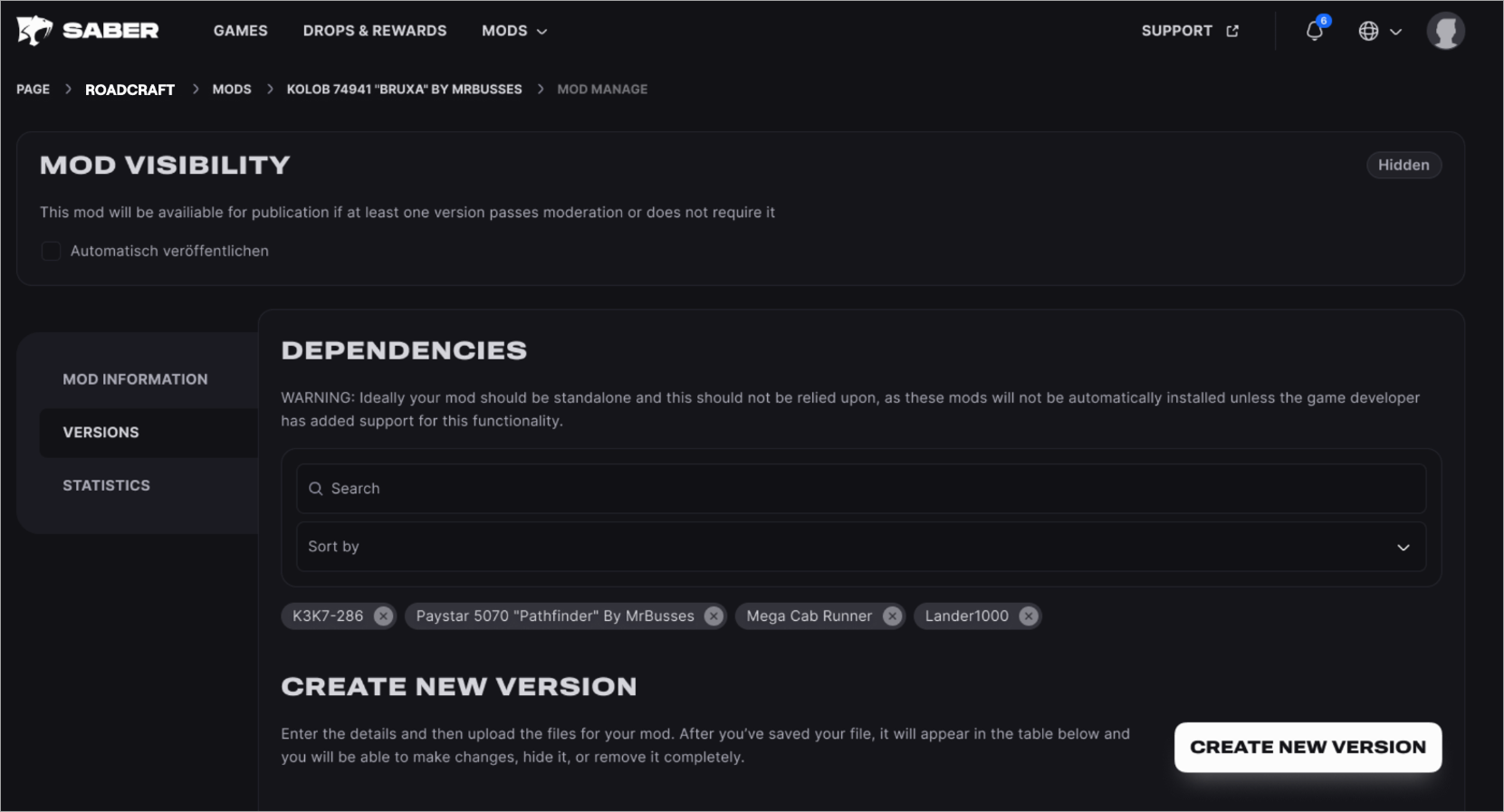
Click Create new version:
Note
Enable the Automatically publish checkbox to publish the mod after a successful moderation (if it has at least one version). If this checkbox is disabled, the mod remains hidden after moderation and will be unavailable to players until you publish it manually.
-
Fill the information about the mod version in English:
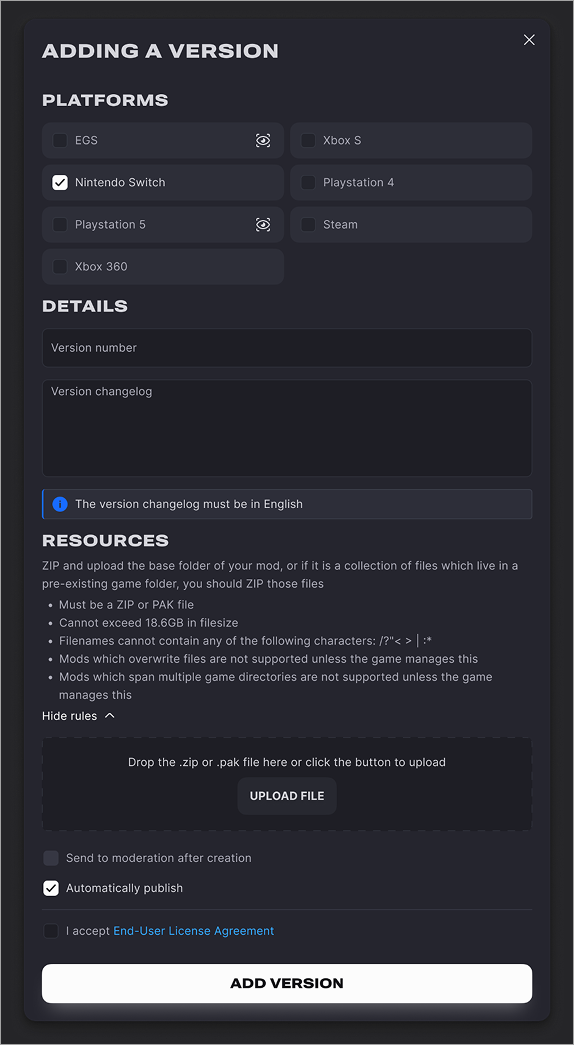
- Platforms — the target platforms.
- Details — the version string (for example, "1.0.0") and the changelog.
- Resources — the mod's
.zip- or.pak-file.
-
-
Wait for the upload to finish.
- Once uploaded, the mod and its version are sent for moderation. You will receive an email at the address linked to your saber.games portal account once the review is complete.